One-off optimization (Pulse Scheduling Experience)
Overview
One-off optimization in the Pulse Scheduling Experience is useful when the workforce or demand is unpredictable, or when responding to unplanned changes to an existing schedule, such as a resource calling in sick.
Optimization runs in the background and provides near real-time results, allowing schedulers to adjust schedules quickly. The solver returns results asynchronously, so the process is not instantaneous, but you can continue using the Pulse interface while optimization runs.
Before you begin
Before starting, familiarize yourself with:
- Optimization recipes, which define how optimization balances objectives and constraints.
- Guidelines to create your first optimization recipe.
Two ways to optimize from Pulse
There are two ways to run one-off optimization in Pulse:
1. Optimize the current schedule
Click the Optimize button at the top-right of the Pulse scheduling view.
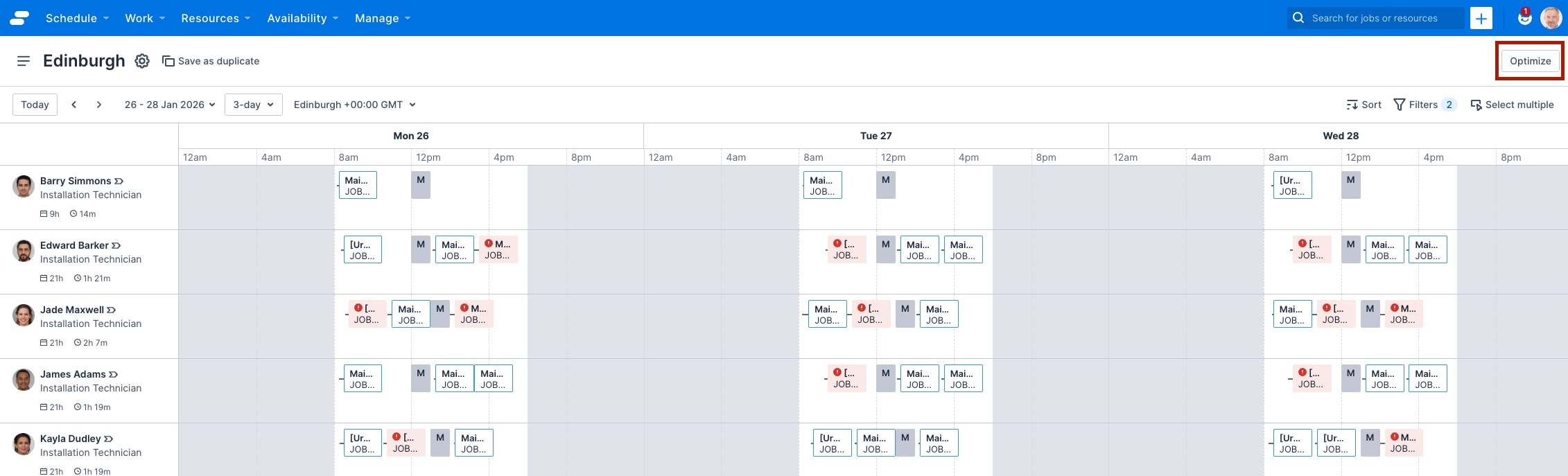
- This option optimizes all work across all resources visible in your current schedule view.
- It does not include new work or jobs selected from the work list.
- The scheduling window is determined by the days currently visible in the Pulse view.
2. Optimize selected work from the work list
Select one or more jobs from the work list and choose the Optimize action.
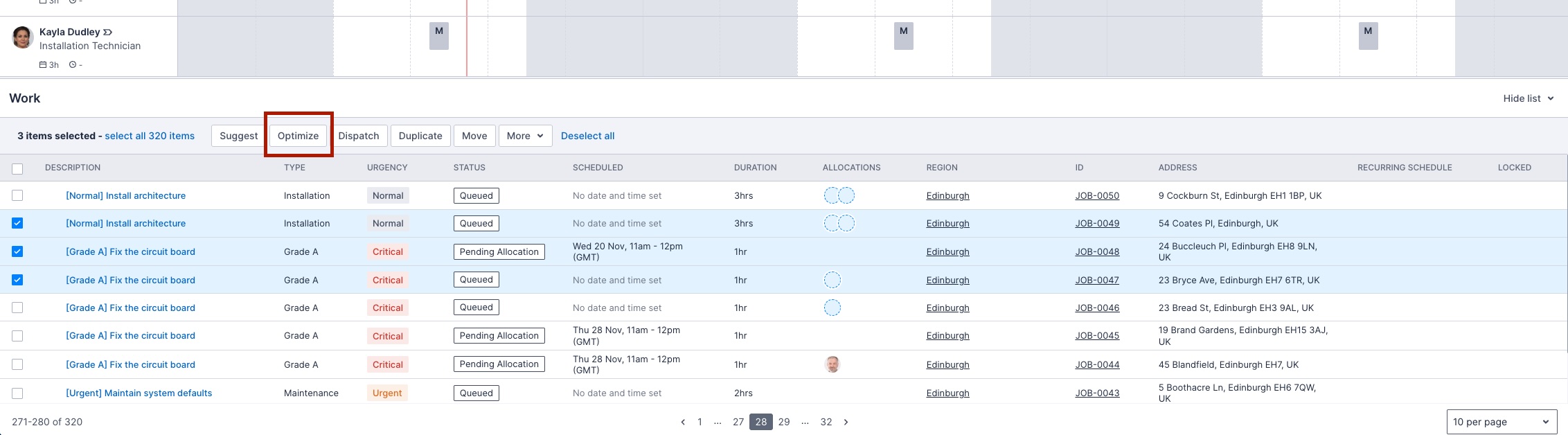
- This option optimizes all selected work and any other work already scheduled in the scheduling window you choose.
- You can configure the scheduling window in the modal that appears.
Configure the Optimize modal
Clicking Optimize from either option opens the Optimize settings modal.
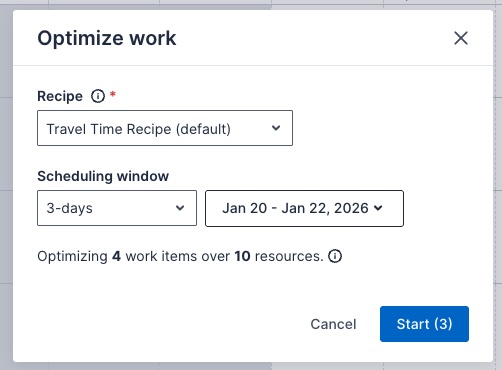
In the modal, you can:
- Select an optimization recipe for the run.
See Create Optimization Recipes for details. - Set the scheduling window (only for the “selected work” option).
- For the “current schedule” option, the scheduling window defaults to the days you are viewing in Pulse.
- Review job and resource counts at the bottom of the modal, as well as the region you are optimizing for.
Once all settings are configured, click Start to initiate the optimization run. The number indicates how many jobs you have selected from the work list.
Running the optimization
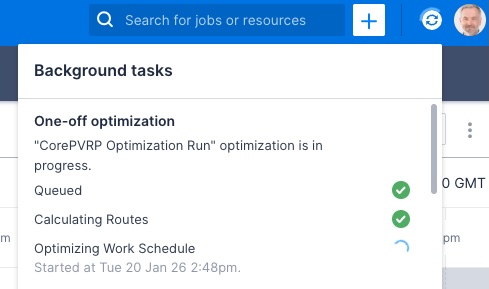
- The optimization runs in the background.
- You can continue working in Pulse while the solver completes.
- A confirmation message appears when the optimization is ready, allowing you to view the results.
Viewing results
Click Ready to view results to open the optimized schedule.
- You can apply the results to the schedule immediately or preview them first.
- If you preview, you can either Apply to schedule the jobs according to the optimized results or Reject to discard them.
- Rejected results cannot be applied later.
- Results that are neither applied nor rejected can be accessed from the Optimization History page.
See Optimization Results for more details.
Tips for Pulse optimization
- Ensure the scheduling window you want to optimize is fully visible when using the current schedule option.
- Selecting specific work from the work list allows more targeted optimization without affecting other jobs outside your chosen window.
- Always review the number of jobs and resources to avoid unintentionally including or excluding work from the optimization.
Feedback
Was this page helpful?