Manage work offers
Overview
Work offers and unaccepted assigned work are listed in the Notifications screen in the Skedulo Plus mobile app.
When a scheduler sends a work offer to nominated resources, they are notified in the Skedulo Plus mobile app in the Notifications screen.
The Notifications icon in the lower menu bar displays a badge with the number of new work offer notifications.
Tap Notifications on the menu bar at the bottom of the app, then tap Offers to view your current work offers.
Note
Offers with scheduled start dates older than 7 days are filtered out. All other offers, including those with future dates or no scheduled start date, remain visible.Viewing open offers
Work that has been offered to you but not yet allocated appear under Open. Open offers are read-only.
Viewing successful offers
By default, schedulers control which resources are allocated to work from the pool of claimed offers.
Depending on your team’s workflow, work that is allocated to you from a claimed work offer appears in your agenda either as Confirmed
If you are allocated the work the offer card moves to the Successful offers tab in the Offers screen.
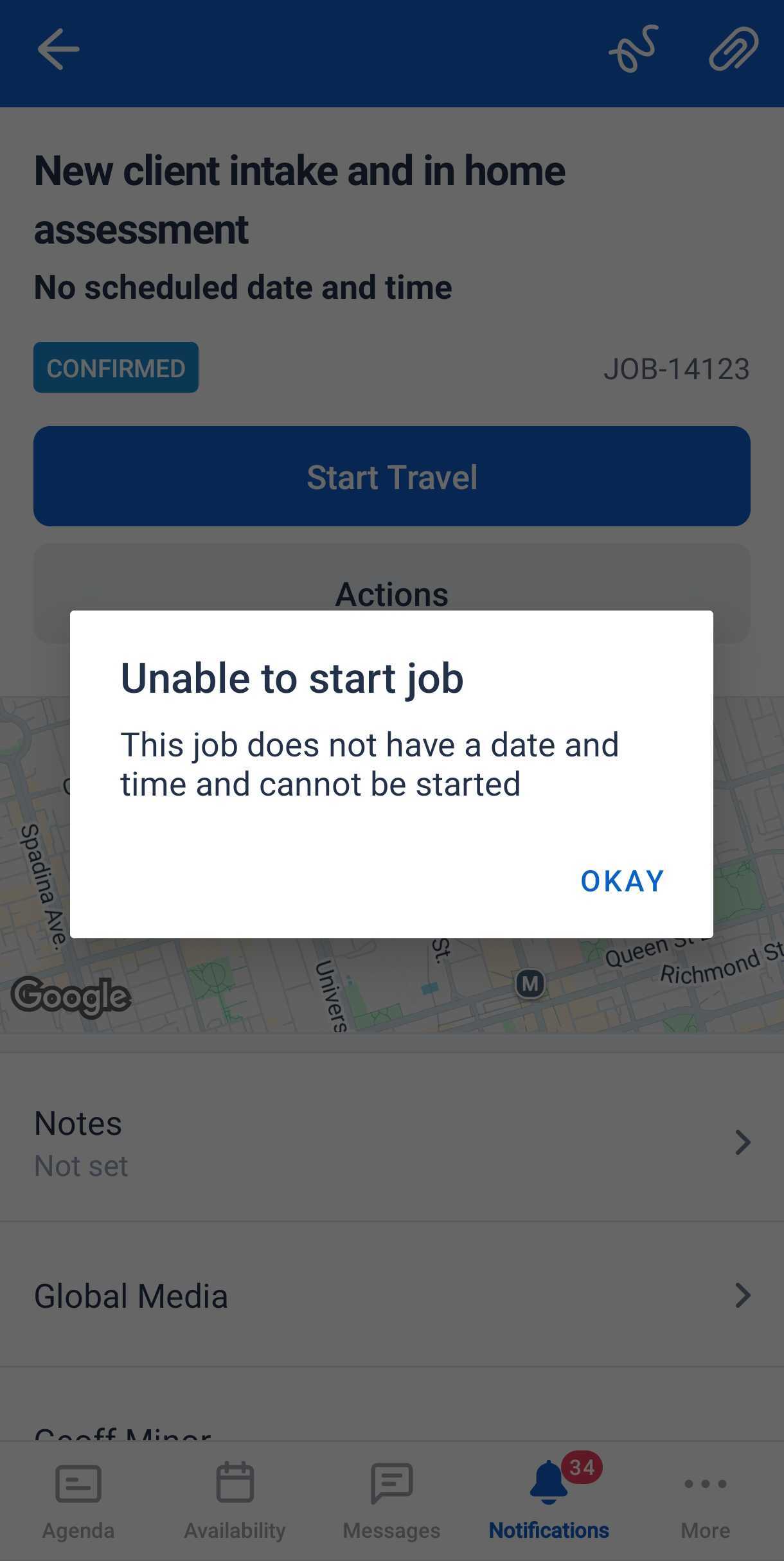
Selecting a successful offer opens the Job Detail screen. For offers without a scheduled date and time, status progression is restricted; attempting to start work will trigger a warning message.
Viewing expired offers
Offers appear in the Expired offers tab when:
-
The work or resource requirement is fully allocated, and the resource was not allocated to the work.
-
The resource declined the work offer.
-
The work is canceled.
-
The resource requirement has been deleted.
Expired offers are read-only.
Filter and sort work offers
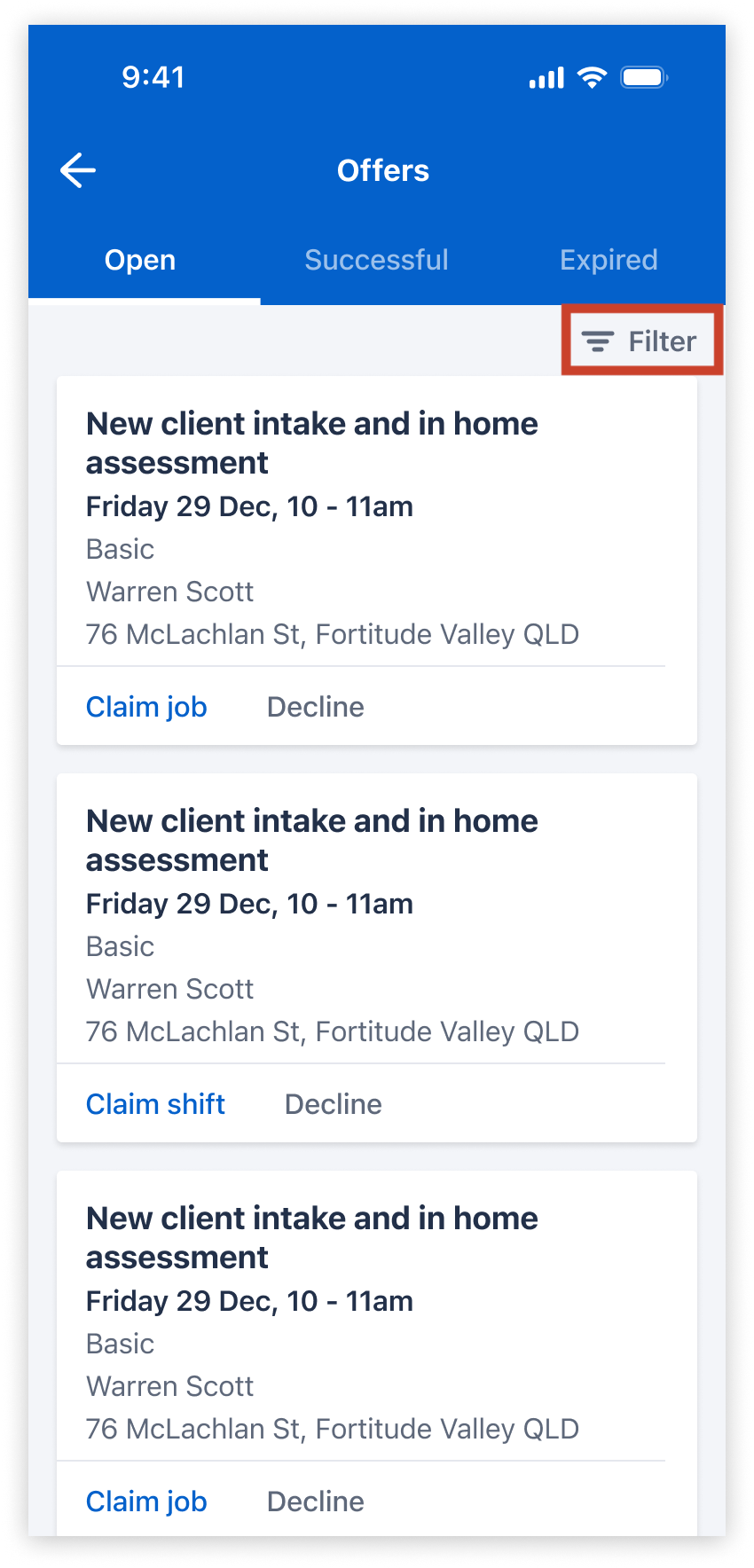
The Filter options bar appears on all three tabs of the Offers screen. When you save the filter and sort settings, they are applied to all tabs.
Do as follows to filter job or shift offers:
-
Navigate to Notifications > Offers.
-
Tap Filter to open filter and sort options for the offers displayed on the Offers screen.
- In the Filter offers pull-up overlay, choose your preferred sort option:
- Start Time - earliest first (default): Sort offers by job or shift start time in chronological order. Offers with no start time appear first.
- Start Time - latest first: Sort offers by job or shift start time in reverse chronological order. Offers with no start time appear last.
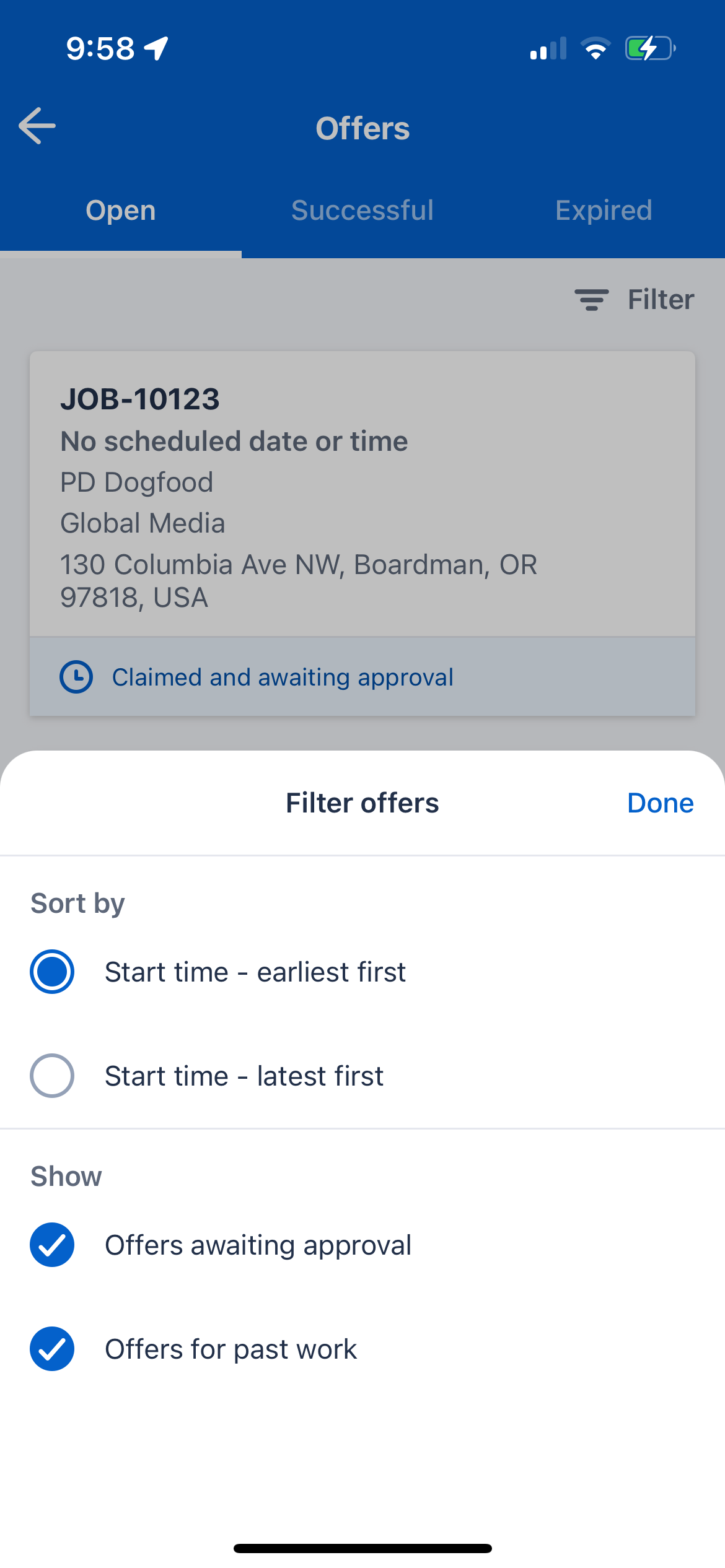
- Choose your preferred view options:
- Offers waiting approval: Shows offers you’ve claimed that are still awaiting allocation by a scheduler, along with other offers. Applies only to the Open tab.
- Offers for past work: Shows offers with an end date in the past.
- Tap Done to apply your filter.
Auto allocated work offers
Orgs have the option to automatically allocate a job to the first resource to claim the offer.
When Auto allocate is enabled in org settings, resources are automatically assigned work when they claim the offer. Automatic allocation continues until the offer requirements have been fulfilled.
For example, an offer that requires two resources is sent out to a target group. The first person to claim will be allocated as soon as the claim is received, then the second person to claim will also be allocated. The offer will then be closed because the offer requirements are met.
Note
Auto allocate is a non-default workflow setting. Admin users can enable auto allocate in the Settings menu of the Skedulo web app under Scheduling-> Offers.Claim a work offer
You can claim a work offer from the job card on the Offers screen.
Work may be offered to multiple people and, by default, work is not allocated until approved by a scheduler.
- Tap Claim offer on the job card under Open on the Offers screen.
A confirmation dialogue asks you to confirm that you want to claim the work.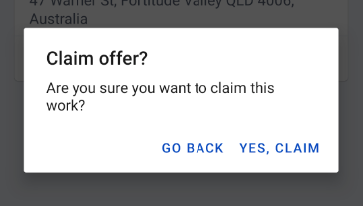
- Tap Yes, claim to accept the work offer.
Decline a work offer
- Tap Decline offer on the job card under Open on the Offers screen.
A confirmation dialogue asks you to confirm that you want to decline the work.
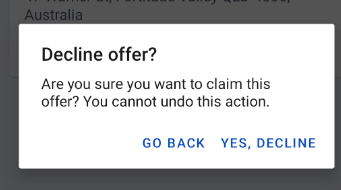
- Tap Yes, decline to decline the work. The work will be removed from your offers and your scheduler will not be able to re-offer the work to you.
Important
Claiming or declining an offer is a final action within the mobile app and cannot be reversed. An active internet connection is required to complete either action.Related links
Feedback
Was this page helpful?