Set preferences
Overview
The Skedulo Plus mobile app Settings are available in the More menu on the navigation bar. The following app configuration options are available:
- Notification preferences (SMS/Push and Job reminders).
- Localization for distance displayed throughout the app (kilometres or miles).
- Skip navigation options when traveling to a job.
- Show timezones for scheduled datetime in Agenda’s job cards.
- Save original copies of photos on your device.
- Add attachments only when connected to Wi-Fi networks.
- Enhance security with the App lock feature.
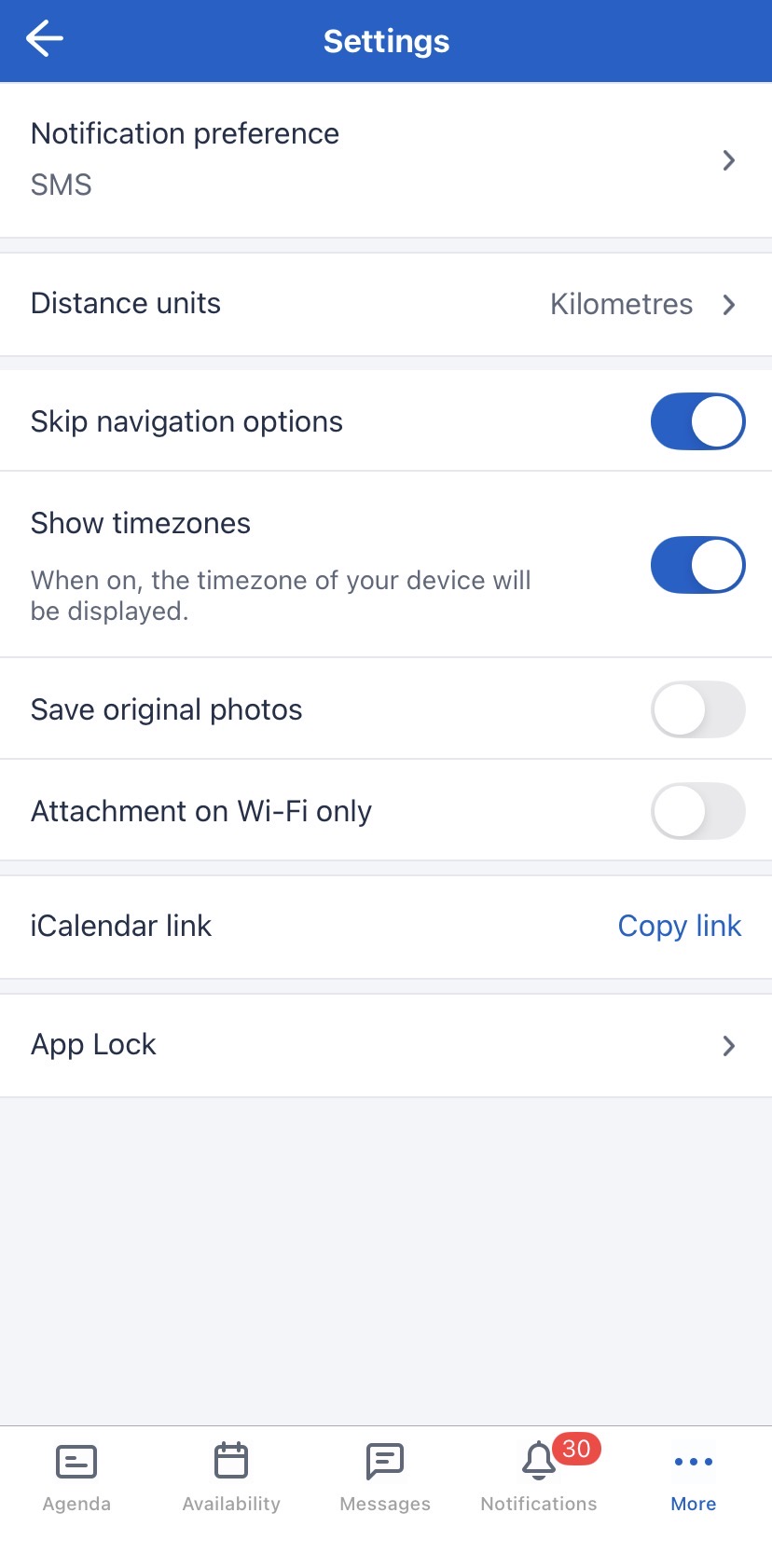
Notification preference
- View or change your preferred notification method to SMS or Push.
Note
Resources can only update their preferred notification method if the organization has enabled the setting Enable resource to change their notification delivery preference.- Set your Job reminders setting. Refer to Manage job reminders.
Localization
Set the distances displayed in Skedulo Plus to either Kilometres or Miles.
Skip navigation options
The travel and navigation options open device navigation services, such as Google Maps, to provide directions to the job location. However, not all organizations require these services.
Switching the skip navigation switch ON allows mobile users to skip the Skedulo navigation options. The default setting is OFF.
Show timezones
When enabled, the device’s timezone appears next to the start and end times on Agenda job cards. The default setting is OFF.
Save original photos
Save the original photos taken using the Skedulo Plus mobile app locally on your device. The save original photos switch controls if copies of the photos you take using the app are saved locally (ON), or not (OFF).
The default setting is OFF.
Attachments on Wi-Fi only
Specify if you only want to allow the app to download or upload attachments when connected to a Wi-Fi network.
By turning this switch ON attachments will not be shown when connected to cellular data, to avoid carrier costs.
The default setting is OFF.
App Lock
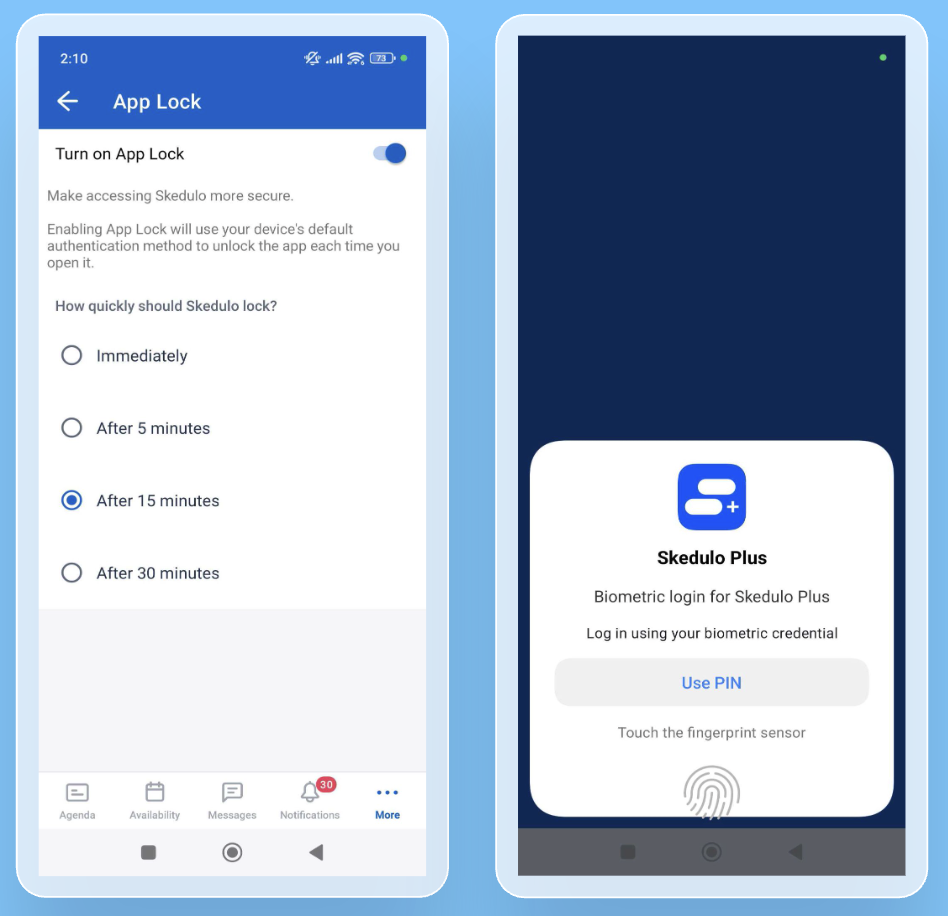
The App Lock feature enhances data privacy by adding an extra layer of security. When enabled, the Skedulo app requires authentication whenever it is reopened or after a specified period of inactivity.
To enable the app lock, do the following:
-
In More > Settings, click App Lock.
-
Click to enable the setting.
-
Select the app lock time limit from the available options:
- Immediately
- After 5 minutes
- After 15 minutes
- After 30 minutes
Once active, the app will require authentication to resume the session. This feature utilizes your device’s native security credentials (such as Face ID, Touch ID, PIN, or passcode).
If the app is minimized to the background, it will require authentication after your selected timeout period expires. If the app is fully closed, authentication is always required upon relaunch.
Related links
Customize mobile app settings.
Feedback
Was this page helpful?